


 View
View
Hi makers!
Another PCB completed, and a different color chosen—blue. I created a simple, minimalist PCB (again via JLCPCB) that allows me to use a microcontroller from the ATMega family. I made this minimal platform for me, I can use it with an ATMega8 or ATMega328 microcontroller, or any compatible microcontroller. I made a simpler version, giving up the programming circuit via USB and others, like voltage regulator, resulting in a PCB that allows us access to the GPIO of the microcontroller.
For microcontroller programming, you can use a method similar to that of Arduino platforms, load a bootloader in the microcontroller, and with an FT232RL TTL to USB adapter you can program the microcontroller very easy , as it is done on Arduino boards. There is also a green LED indicator on the PCB for voltage, and a red LED that we can use to load and run a Blink sketch.
eb558b3f2c744803bf98c13f00515ba7.webp
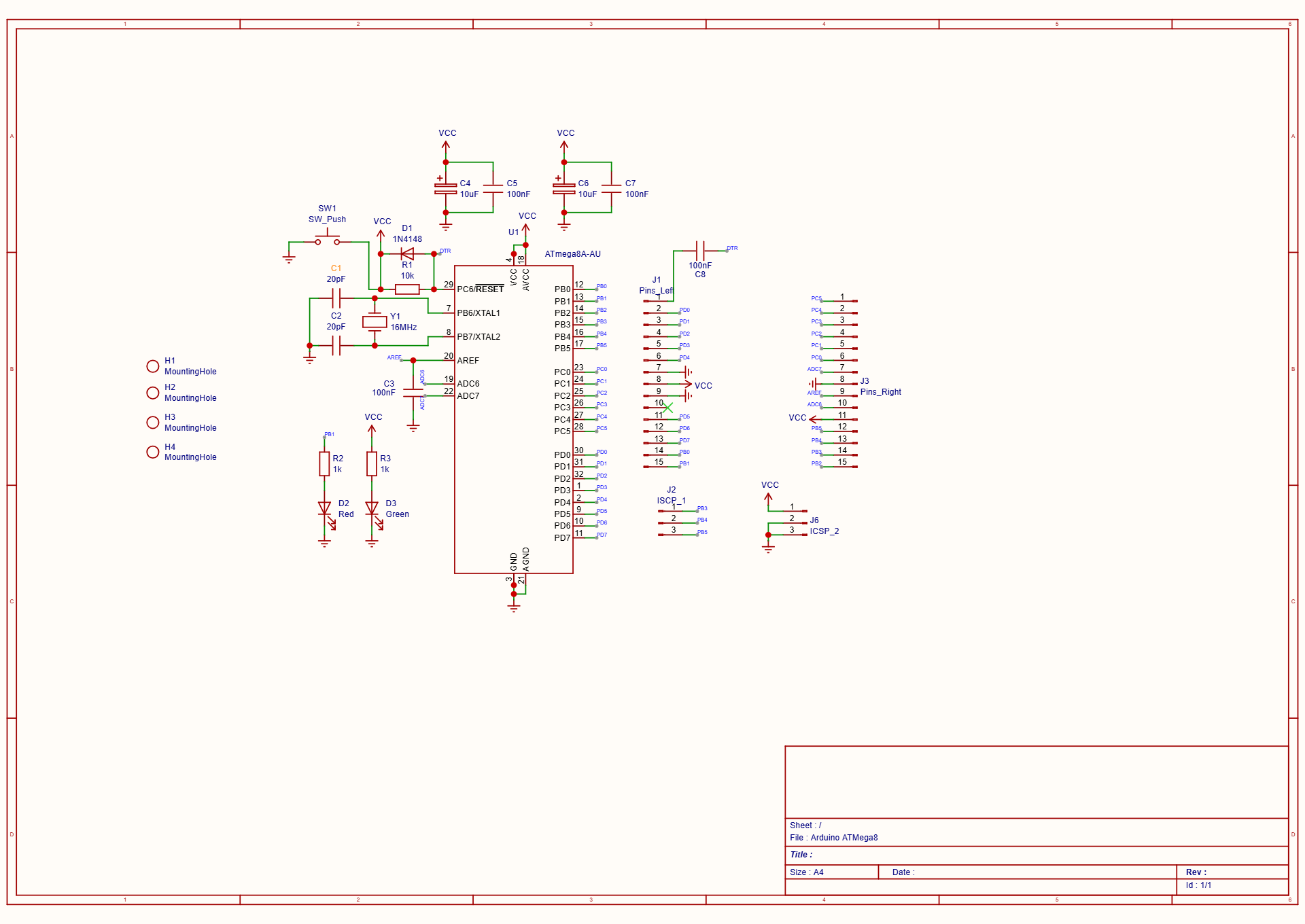
1. Microcontroller & Clock Circuit (The Core)
- U1 (ATmega8A-AU / ATmega328): This is the brain. The schematic shows the TQFP-32 SMD package pinout. It is compatible with both ATmega8 and ATmega328 (pin-compatible for the most part).
- Y1 (16MHz Crystal) & C1, C2 (20pF): This is the external clock circuit. 16MHz is the standard speed for Arduino boards (running at 5V). The capacitors C1 and C2 are load capacitors required for the crystal to oscillate stable.
2. Power Supply & Indicators
- Decoupling Capacitors (C4, C5, C6, C7, C3): 10µF (bulk) and 100nF (high-frequency noise filtering) capacitors near the VCC pins (AVCC and VCC) and the AREF pin. This is crucial for stable operation, especially for the ADC (Analog to Digital Converter).
- D3 (Green LED) & R3 (1k):Power Indicator. It is connected directly to VCC (through a current-limiting resistor). It will light up as soon as the board is powered, confirming voltage is present.
- J6 (ICSP_2): Power header (VCC and GND), likely used to supply power to the board or tap power from it.
3. Reset Circuit
-
R1 (10k): A pull-up resistor keeping the RESET pin (Pin 29) HIGH (active state) during normal operation.
-
SW1 (SW_Push): A tactile button that pulls the RESET pin to Ground when pressed, manually resetting the microcontroller.
-
Auto-Reset Circuit (C8, D1, "PTR" net):
- The label "PTR" connects to the DTR (Data Terminal Ready) pin of your FT232RL adapter.
- C8 (100nF): This capacitor couples the DTR signal to the RESET pin. When you open the serial port to program (like in the Arduino IDE), the DTR line pulses, pulling RESET low momentarily to put the chip into the bootloader. This allows for "Auto-Reset" programming just like a real Arduino.
- D1 (1N4148): This diode is there to protect the reset line or ensure fast discharge of the capacitor C8 when the button is pressed, preventing conflicts between the manual button and the auto-reset circuit.
4. User Interface (The "Blink" LED)
-
D2 (Red LED) & R2 (1k): LED for testing.
- Note on Pinout: On an ATmega328, PB1 corresponds to Arduino Digital Pin 9.
- Standard Arduino Note: The standard "Blink" sketch usually uses Pin 13 (PB5). Since your LED is on PB1 (Pin 9), you would need to change the pin number in the Blink sketch to
9(or defineLED_BUILTIN 9) to see it blink, unless you have customized the bootloader/board definition.
5. Connectivity & Headers (GPIO Access)
The main purpose of this board is to break out the pins.
-
J1 (Pins_Left) & J3 (Pins_Right): These headers break out almost all the GPIO pins (Port B, C, D) and Analog pins (ADC6, ADC7, AREF). This allows you to easily connect sensors, modules, or wires.
-
J2 (ISCP_1): This is the ICSP (In-Circuit Serial Programming) header.
- It exposes PB3 (MOSI),** PB4 (MISO), and PB5 (SCK)**.
- This is used to burn the bootloader initially using a programmer like a USBasp or AVR ISP. Once the bootloader is installed, you can switch to using the FT232RL method you described.


The circuit description was created using A.I.
*****The circuit is presented as is, made for hobby projects.
#PCB# #Microcontroller#
 #PCB#
#Microcontroller#
#PCB#
#Microcontroller#
Sign In Or Register Comment after
No comments yet. Be the first to comment!