


 Electronic Community JLCDMP Mechanical Community OSHWLab JLCPCB JLC3DP JLCCNC JLCMC JLCONE EasyEDA JLCCAN LCSC Cable LCSC Panel





Hello macOS users!
We know many of you create, design, and manage projects on Mac—so we've made sure JLCONE runs smoothly on both Intel and Apple Silicon (ARM) Macs. Here's a quick guide to get started:
Step 1: Download the JLCONE App
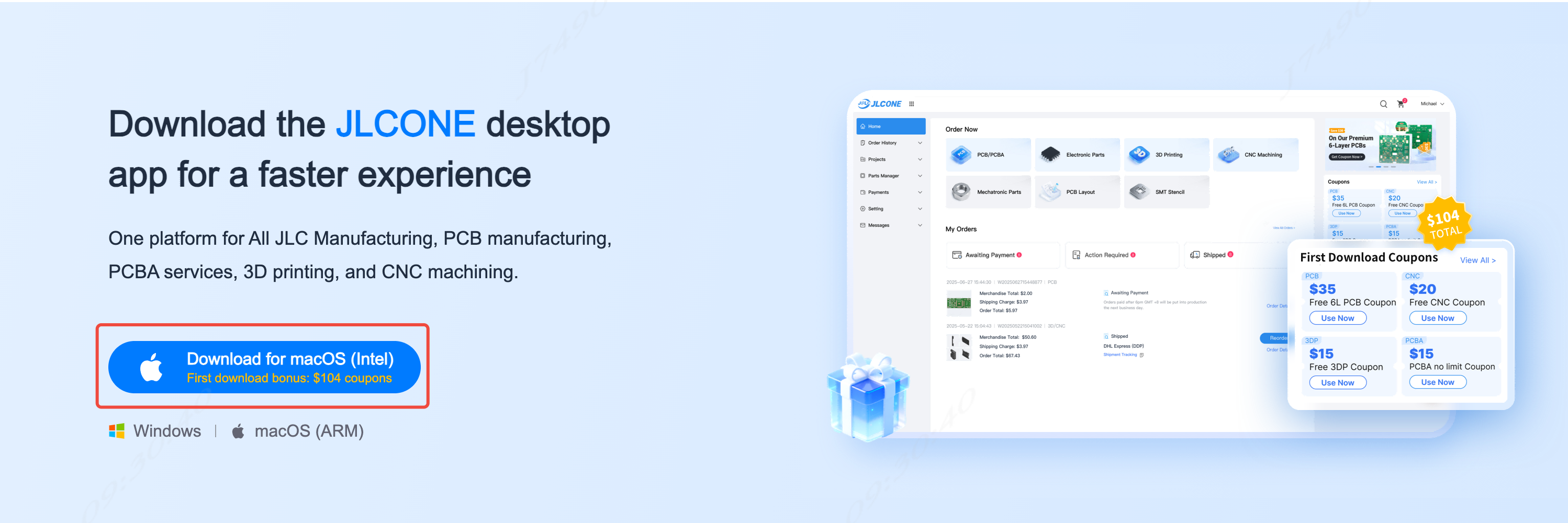
- Download the installation package (.dmg or .pkg) from the JLCONE download page.
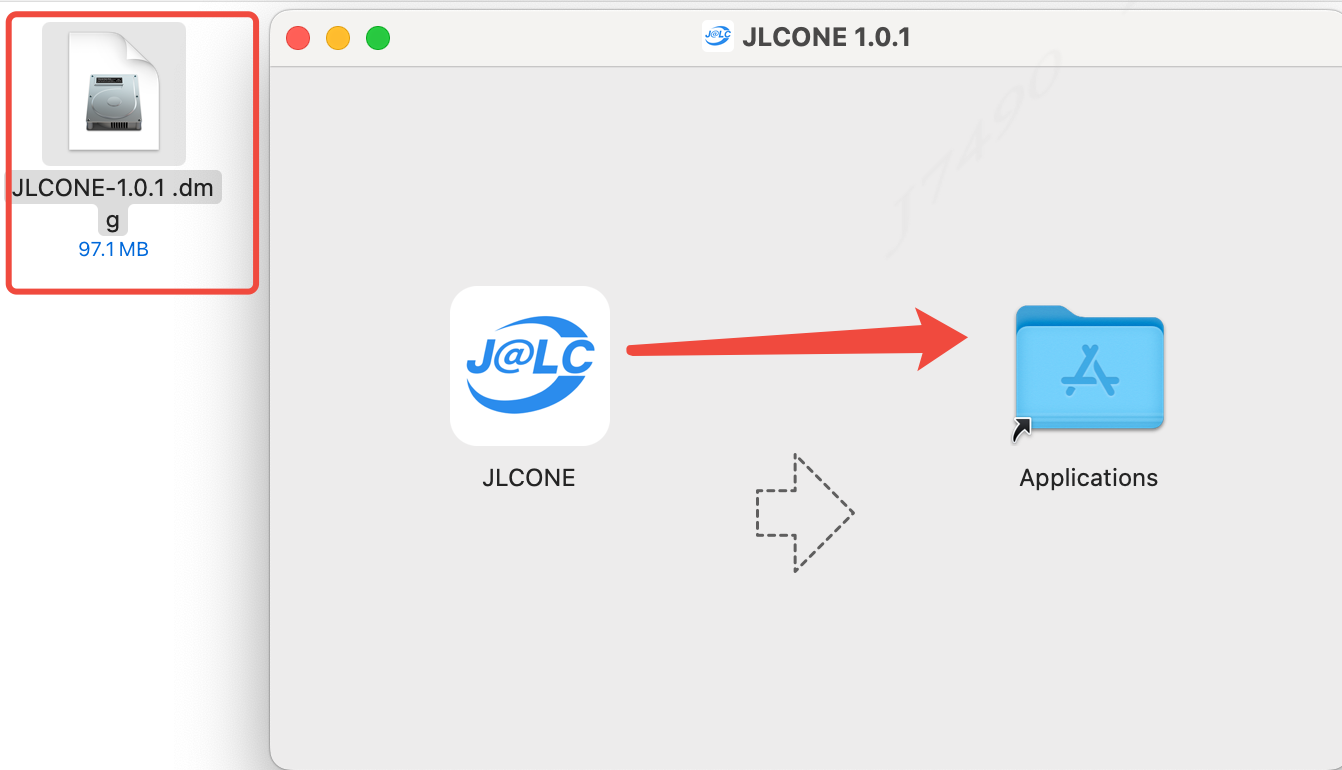
- Double-click the downloaded file, then drag the app into the Applications folder.
Step 2: First Launch
-
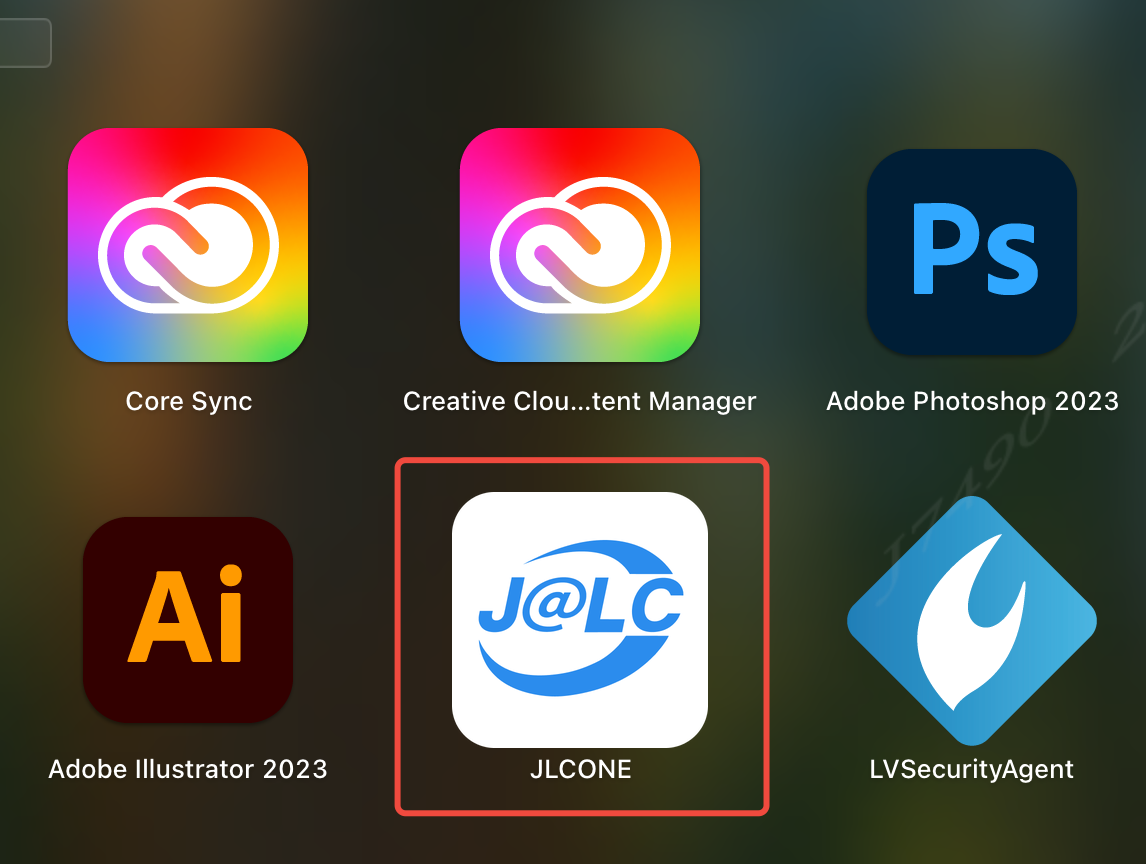
Open the Applications folder and double-click the JLCONE app icon.
-
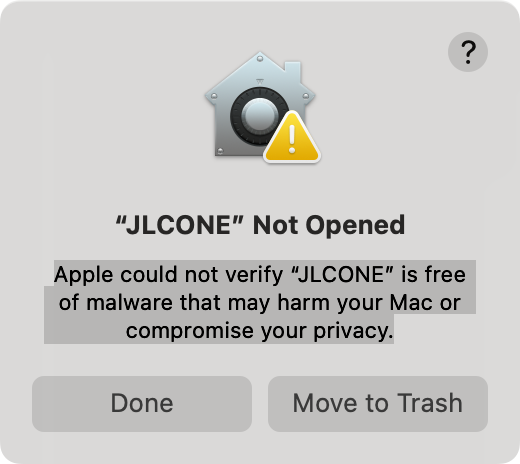
You may see the message: Apple cannot verify that "JLCONE" is free of malware that may harm your Mac or compromise your privacy.
Click "Done" to proceed.
Step 3: Allow the Installation
-
Click Apple menu > System Settings (macOS Ventura or later).
-
Go to Privacy & Security.
-
Scroll down to the message: "JLCONE" was blocked to protect your Mac.
-
Click Open Anyway.
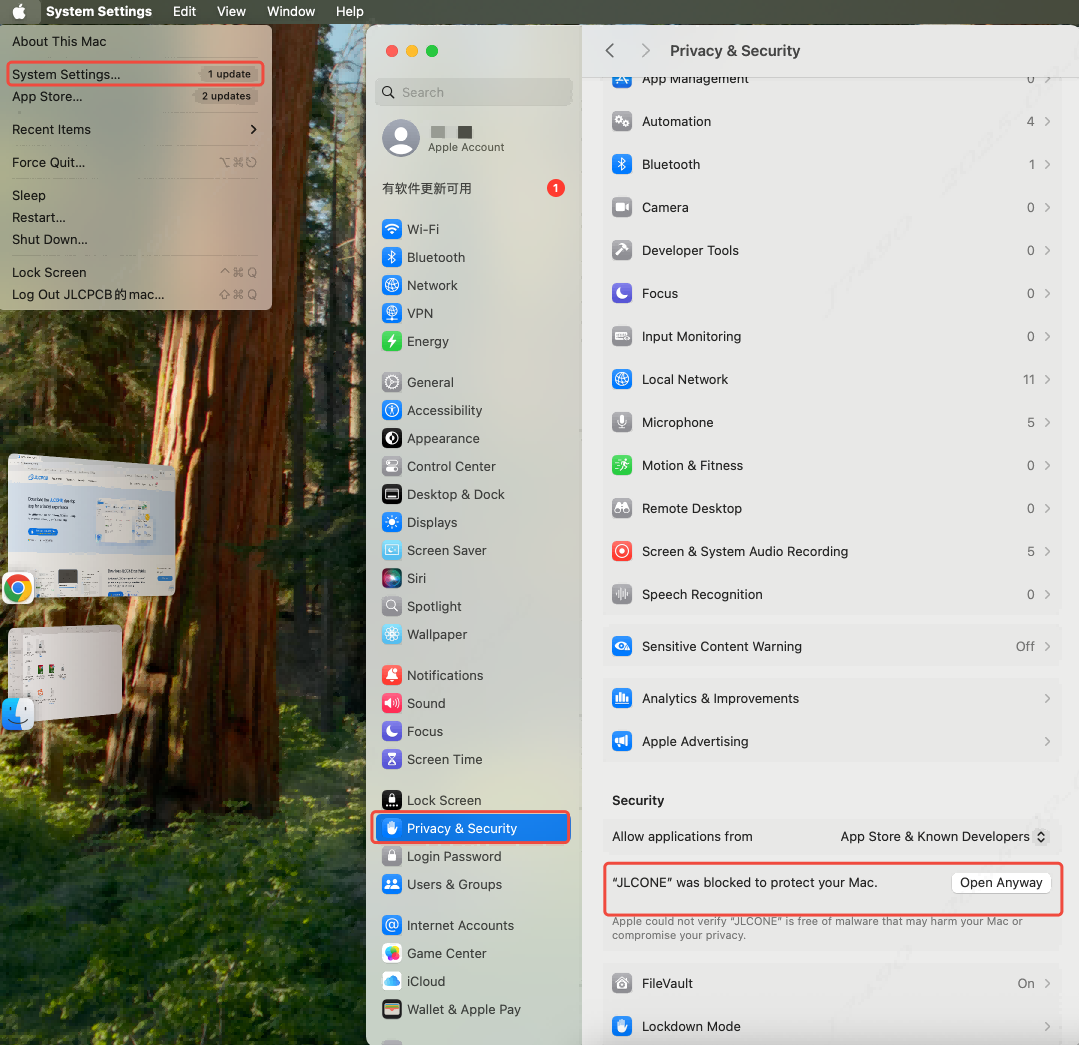
Step 4: Reopen the App
Return to Applications and double-click JLCONE to launch it.
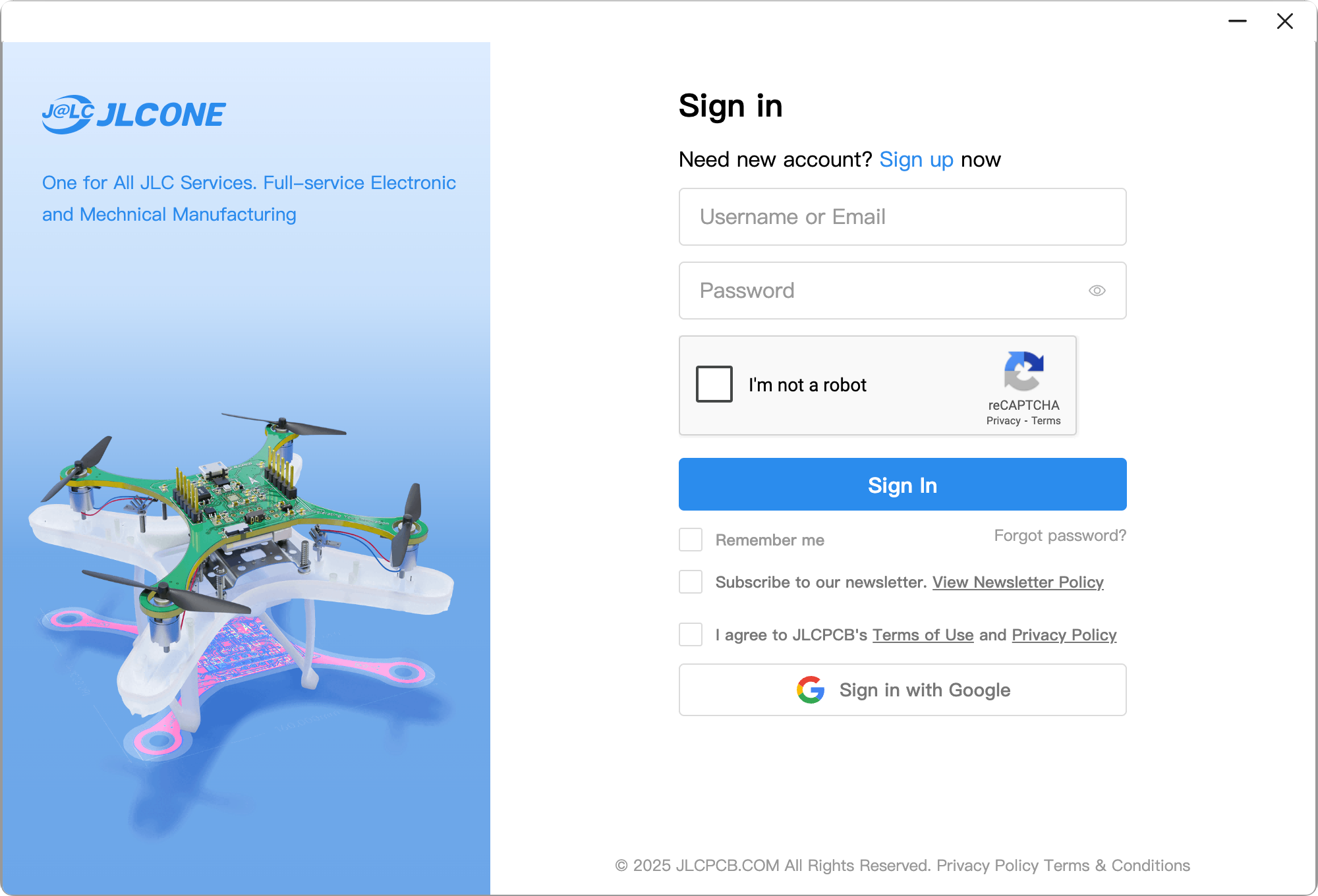
Why use JLCONE on Mac?
- Stay logged in between sessions
- Order PCBs, 3D prints, or mechanical parts without switching tabs
- Real-time order tracking from your dock
- Desktop notifications for order updates (coming soon!)
Having trouble with installation? Reply here or reach out to our support team—we're happy to help.
Download JLCONE for macOS here: Learn More & Download Here
Hey makers and engineers!
To celebrate the launch of JLCONE's desktop app, we're giving away $104 in JLC coupons to every first-time desktop user! 🎉
Here's how to claim yours:
- Download the JLCONE desktop app for Windows or macOS.
- Install and log in with your JLC account.
- Your coupon bundle will be automatically credited to your account—no codes needed!
This welcome gift is our way of saying thanks for trying JLCONE desktop, where ordering is faster, tracking is clearer, and your workflow stays streamlined. Use the coupons across any JLC service—PCB, PCBA, 3D printing, CNC, and more.
Whether you're planning a new prototype or scaling up production, now's the perfect time to experience integrated manufacturing with a little extra savings.
Download, log in, and claim your $104 today: Learn More & Download Here
Feel free to share what you'll use your coupons for in the replies below!
Hello JLCHUB community!
We're excited to officially introduce JLCONE, JLCPCB's very own all-in-one manufacturing app, built to bring every stage of your electronic and mechanical project workflow into one seamless experience. Designed for engineers, makers, and procurement teams worldwide, JLCONE integrates access to all JLC services—PCB fabrication, PCBA, SMT stencils, PCB layout, flexible heater, 3D printing, CNC machining, and mechanical parts sourcing—right in your pocket or on your desktop.
Available on Windows, macOS (ARM/Intel), Android, and iOS, JLCONE keeps you logged in, saves you from repetitive browser logins and CAPTCHA checks, and gives you instant access to ordering, tracking, and live expert support. Whether you're at your desk or on the move, your projects stay connected and under control.
Why choose JLCONE? Think speed, simplicity, and visibility. Place orders in clicks, track in real-time, chat directly with JLC engineering teams, and enjoy enterprise-grade security—all within a single, purpose-built app.
Ready to simplify your manufacturing?
Download now: Learn More & Download Here
We can't wait to see what you build with JLCONE!


I'm developing a new approach to circuit analysis using AI, and I've created an open source tool that might interest the EasyEDA community.
Current PCB analysis falls into two categories:
- Design Rule Checking (like EasyEDA Pro's DRC)
- Manufacturing checks (like JLCPCB's DFM)
These are essential tools, but I'm targeting a different need: circuit intent analysis.
The goal: Describe what a circuit should do, and have AI assess if the design matches that intent. Think questions like:
- "What is this circuit designed to do?"
- "Does this Arduino shield have adequate isolation?"
- "Is this level shifter suitable to connect a 3.3V I2C device to a 5V Arduino?"
- "Are the decoupling capacitors properly placed for this FPGA?"
Current AI approaches require uploading schematics, Gerbers, or images—formats that are bulky and not optimized for semantic analysis.
My solution extracts three key files from EasyEDA:
- BOM (Bill of Materials) - What components are used
- Pick & Place - Where they're located
- Netlist - How they're connected
The tool easyeda_parser.py converts these three files into clean YAML — a lightweight, structured format perfect for AI analysis.
This gives LLMs the complete functional picture without the bloat of graphical formats.
The parser is open source, and available at: https://github.com/koendv/easyeda_parser/
My opinion is that "Export for AI analysis" should be native EDA functionality, built into the EDA tools themselves.
At the moment, the tool is limited to the information available in BOM, Pick and Place, and Netlist. A future native export might add stackup, trace widths, and trace length to the YAML, sufficient to do transmission line analysis, and allow queries like "Are the QSPI flash traces length matched?"
I'm sharing this early to gather feedback. Would this approach be useful for your workflow? What kinds of intent analysis do you want to perform?"
#Others# 


The $3 Extended Part Fees can add up to a lot. I want to see the $3 status of every part I use. EasyEDA V2.2.45.4 client provides absolutely no way to see that. Every part in the schematics should have at least a read-only checkbox property for $3 fee status. The BOM Device Standardization and exports should include it. The library search window should have it. And the web BOM Tool should have it. None of them have it. They all should.
The only way to see $3 status is in parts search web page: a Basic type or blue thumbs-up in row indicates no $3.
I'm not arguing against a $3 fee. I think it makes business sense to incentivize users to consolidate on basic/promo parts. But JLC is remiss in making that determination unreasonably difficult. This problem has been extant for years.